
If you see a message that your Web browser is properly
recognized AND you see green checkmarks next to all
items, your browser is completely set up. You do not
need to make adjustments to it.
Configuring Your System to work with Blackboard
The Browser Checker examines your computer/browser for components that Blackboard needs in order to operate effectively. The Browser Checker is also located on the Institution Page after login. To verify your browser in Blackboard:
-
Open the Web browser you will be using throughout the online course.
-
Go to the Blackboard site and log in. Be sure to enter the site through the authentication link in the Faculty and Student Login module.
-
Locate the Browser Checker on the Blackboard Institution Page.
-
Click the Browser Checker link.
-
Verify that your Web browser meets all of the system requirements.
Passing All System Check Requirements
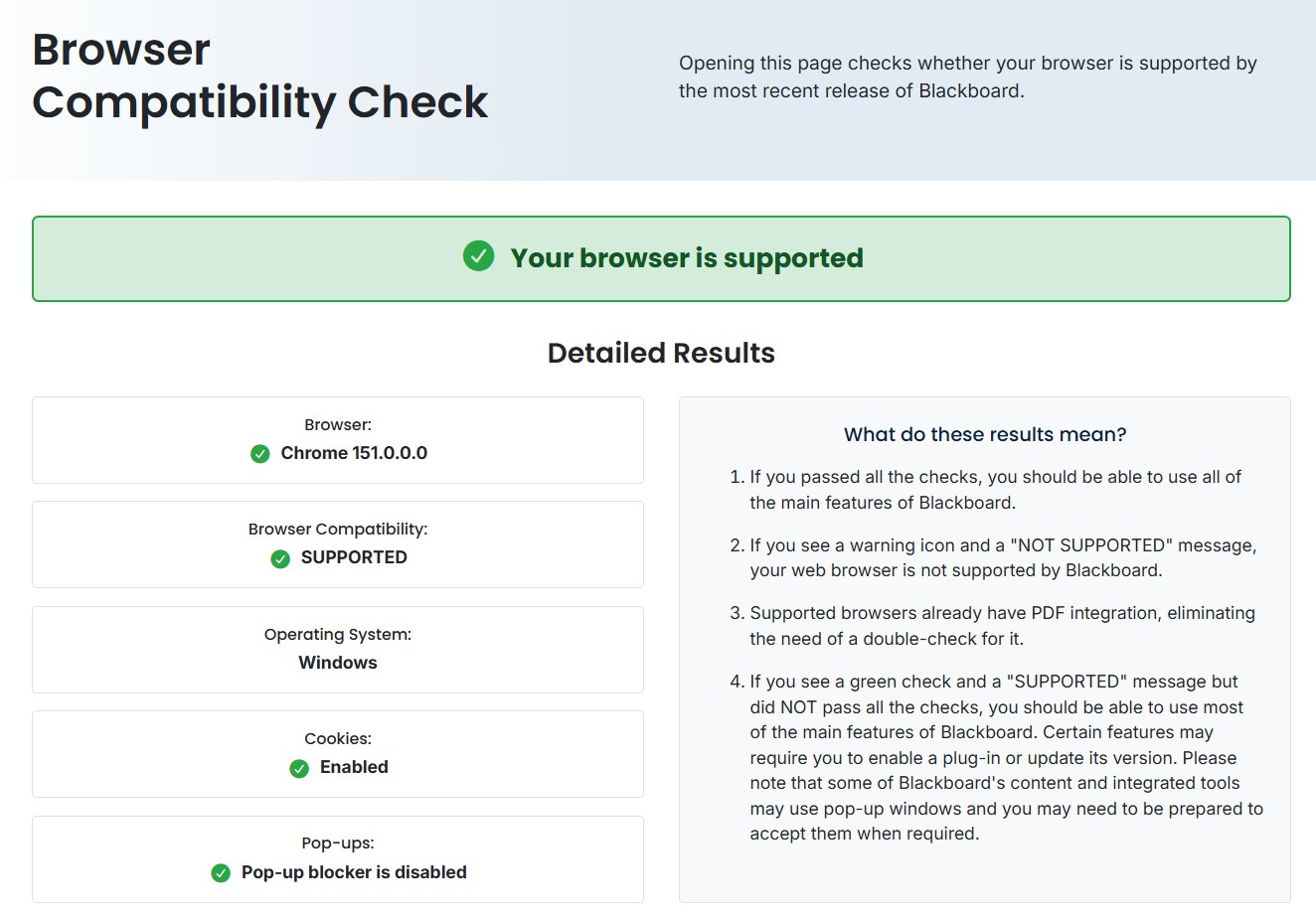
Missing System Check Requirements
If you see a message that your Web browser is not supported by Blackboard or a warning icon, you need to install a browser that is supported. A complete list of supported Web browsers is available.
Required Components
Browser Version
Be sure your browser is up-to-date and that it is on a supported version.
Cookies
Cookies are small pieces of data that websites save on your computer or device via
your browser to remember information about your session. Blackboard uses cookies as
a way to keep track of your movements within the site and keep you logged on as you
navigate the site. This is why it is important to enable your Web browser to accept
cookies.
Popups
Often, Blackboard opens course-related content in a new window. Having a popup blocker
can prevent you from accessing this information and/or taking tests. Be sure to allow
for popups.
Required Components Untracked by the Browser Checker
Javascript
Javascript is a programming language that runs on a Web browser. Blackboard uses this
language to be functional. If Javascript is not enabled, the system will not work
for specific purposes.
Optional Components
PDF Viewer
Course materials may be provided in PDF format. Browsers now have a built-in PDF viewer.
If PDFs do not display, be sure to enable the PDF viewer for your browser. You can
also view PDFs using Adobe Acrobat Reader. | Download Adobe Acrobat Reader
Need help? If you need assistance, contact the NSCC Blackboard Helpdesk at bbhelp@northshore.edu.